LightDrop / File transfer via QR code
Last updated:
Transfer a file via QR code
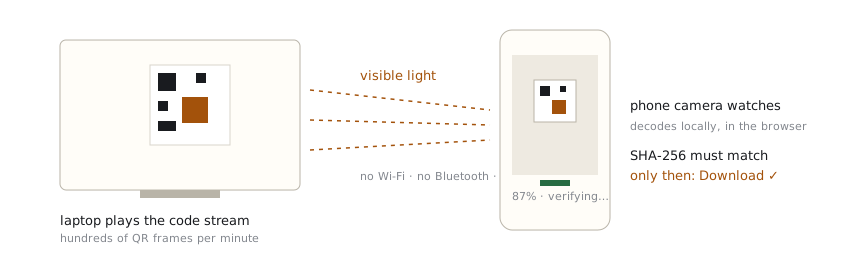
A single QR code holds a couple of kilobytes — enough for a link, never for a file. LightDrop gets past that limit by playing hundreds of codes per minute as an animated stream, so an actual file crosses the air as light.
Do it now
- On the device that has the file, open Send and drop the file in.
- On the other device, open Receive and allow the camera.
- Point the camera at the flickering code and hold reasonably steady. When the progress bar completes and the SHA-256 check passes, tap Download.
No app store, no account, no cable, no Bluetooth dance. Both pages are this same website.
Why an animated code works where a static one can't
A static QR code tops out around 3 KB. LightDrop splits your file into blocks and streams them continuously — and because the stream is fountain-coded, your camera doesn't need to catch every frame. Whatever it catches, in whatever order, eventually adds up to the whole file. Integrity is then proven with a SHA-256 hash before you ever see a download button.
What to expect
| Content | Typical time at defaults |
|---|---|
| A link or note | 1–3 seconds |
| 100 KB document | ~5–10 seconds |
| 1 MB file | under a minute |
| 10 MB file | several minutes — the practical ceiling |
If both devices are happily on the same network, a LAN tool like LocalSend will beat this handily. QR transfer earns its keep when devices can't connect: different networks, locked-down machines, or no network at all.
What affects transfer speed
Four things dominate how fast the progress bar moves, in this order:
- Distance and framing. The code should fill most of the camera's view. Doubling the on-screen size of the code in the frame does more than any setting.
- Screen brightness. Cameras read bright, high-contrast codes dramatically faster. Max out the sender's brightness before starting.
- Frame rate vs. camera quality. The default 30 fps suits ordinary screens and mid-range phones. A slow camera does better at 24 fps; a modern phone filming a 120 Hz screen can try 60 fps in advanced settings.
- Steadiness. Rest the phone against something if you can. Motion blur is wasted frames — recoverable, but slower.
Troubleshooting a stuck transfer
- Progress stays at 0%: the camera hasn't locked onto the stream. Move closer and check the code isn't obscured by reflections.
- Progress crawls after 90%: normal for the last few frames — the fountain code keeps mixing until every block is solved. Hold steady; it finishes.
- “Integrity check failed”: rare, and the tool refuses to hand over a corrupted file by design. Just rescan — the sender never needs restarting.
- Camera won't start: the page must be HTTPS and the browser needs camera permission. The receive page explains the exact browser setting to fix.
Frequently asked questions
Can I send more than one file at a time?
Not yet — one file per transfer keeps the stream and the integrity check simple. To move several small files, zip them first and send the archive; the receiver gets the original zip byte-for-byte.
What is the maximum file size?
The hard cap is 64 MB, but the tool is designed for files under 10 MB. Above that, transfer time grows into many minutes and a USB drive or local network tool becomes the better choice.
Does it work between an iPhone and a Windows PC?
Yes — that pairing is exactly what it's for. Any two devices work as long as one has a screen and the other has a camera with a modern browser: iPhone↔Windows, Android↔Mac, phone↔phone, even two laptops with webcams facing each other.